> For the complete documentation index, see [llms.txt](https://furence.gitbook.io/moai_b2b/llms.txt). Markdown versions of documentation pages are available by appending `.md` to page URLs; this page is available as [Markdown](https://furence.gitbook.io/moai_b2b/moai-web/1/webex/how-to-use-webex-real-time-translation.md).
# How to Use Webex Real-Time Translation
With MoAI Note, you can record and summarize Webex video meetings in real time, and spoken content can also be translated in real time.
How to Use Webex Real-Time Translation
***
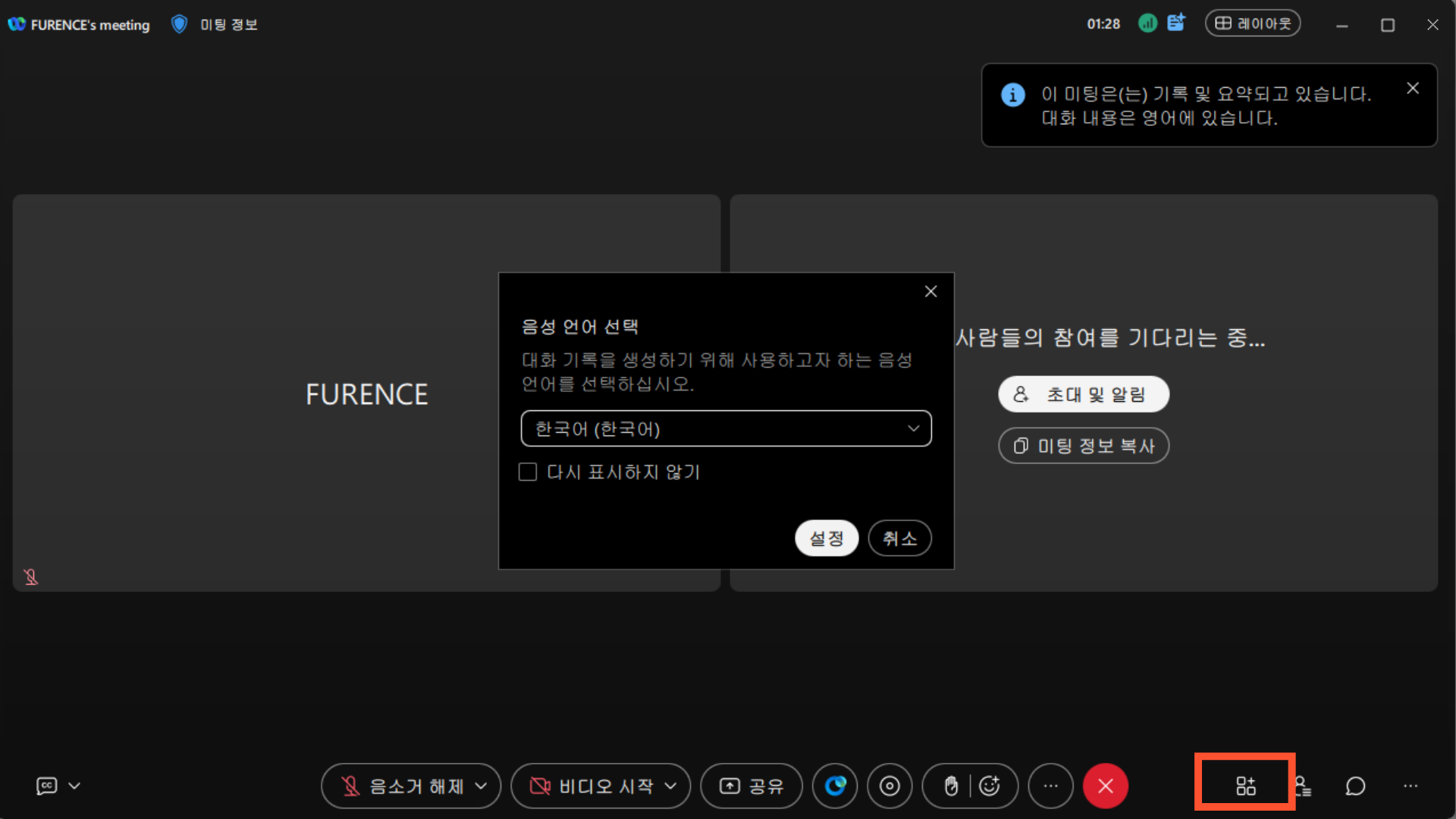
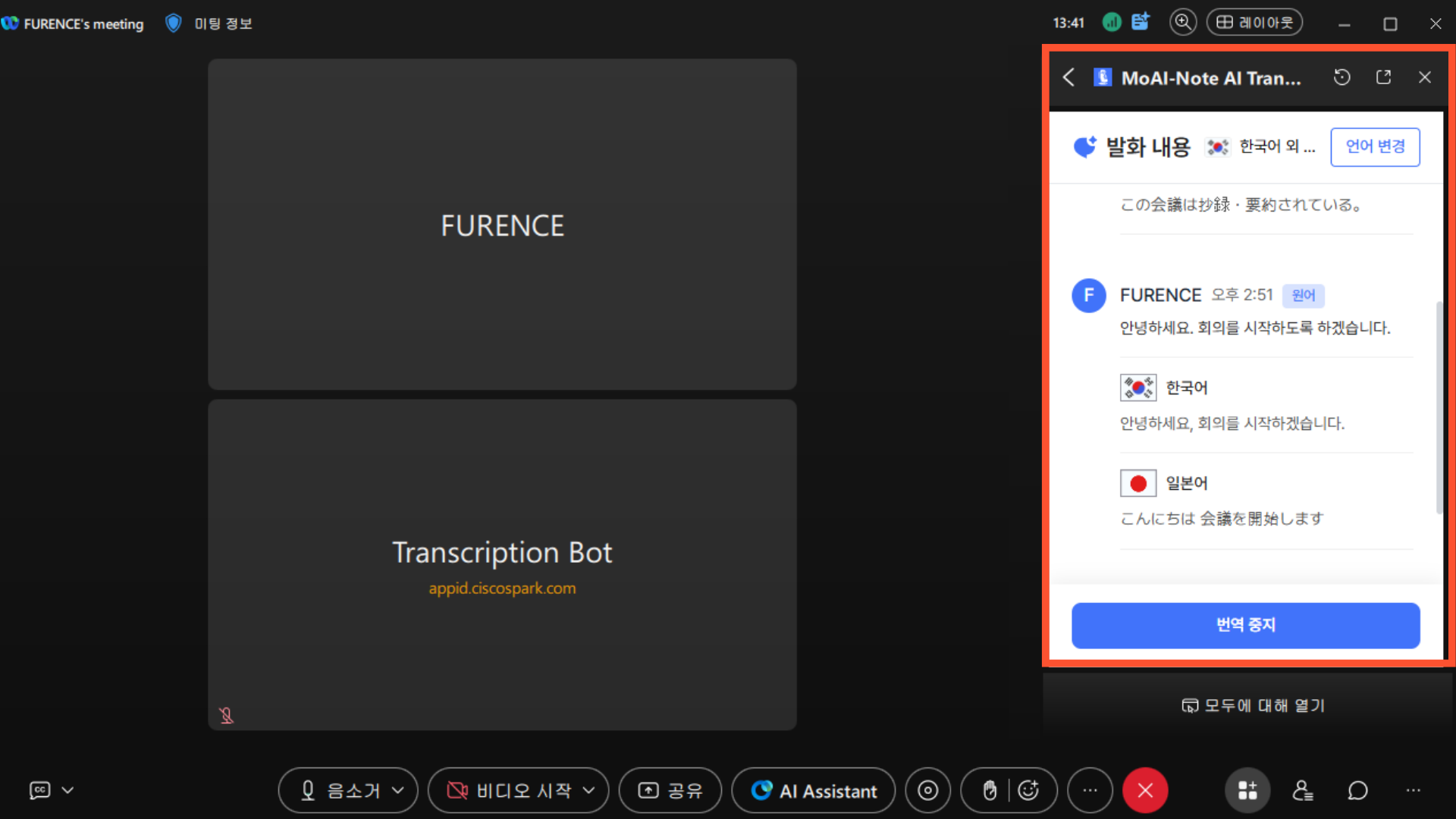
1. In the Webex meeting screen, click **\[Show App List]** at the bottom right.
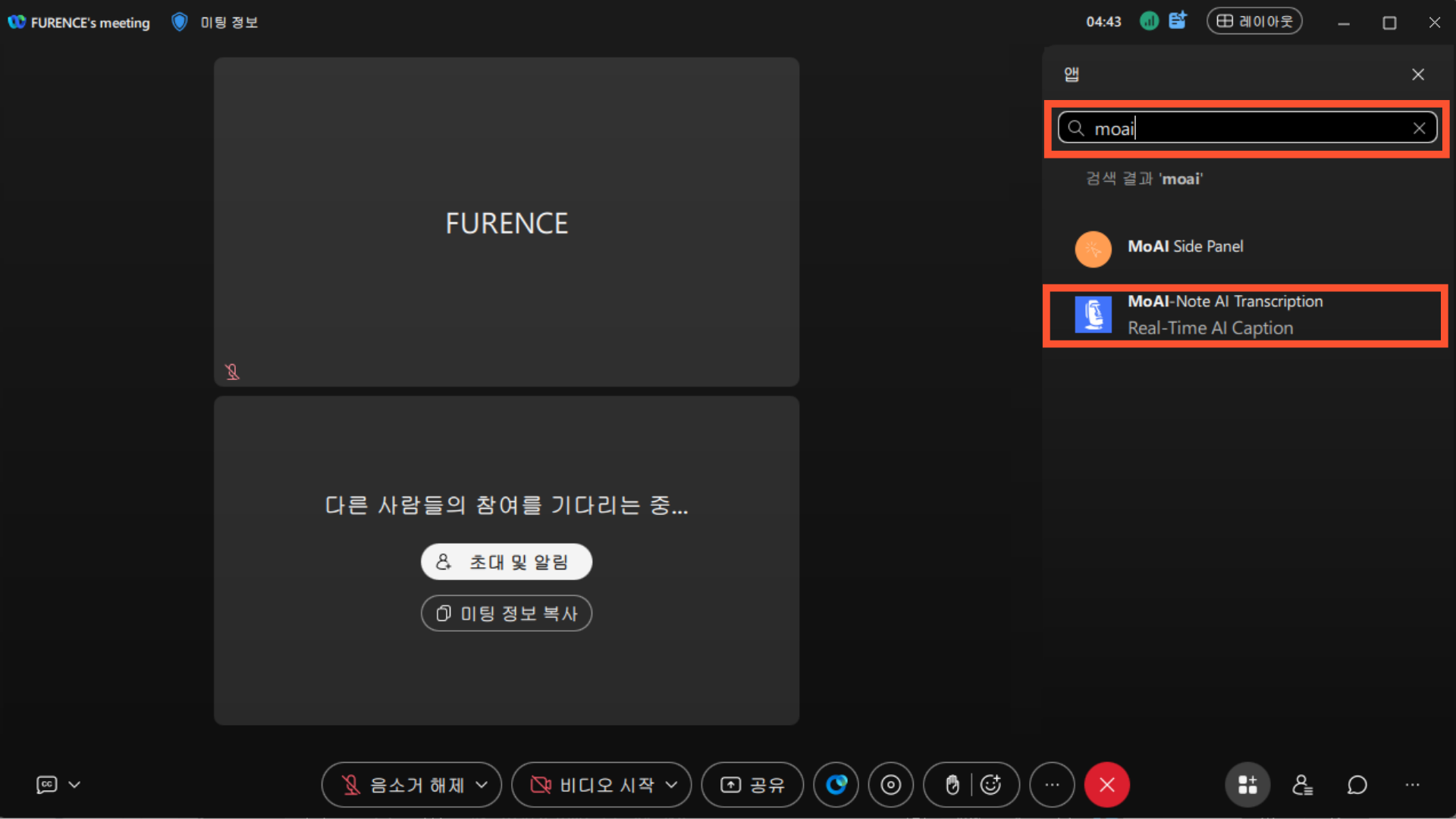
2. Type **\[moai]** in the app search bar. **\[MoAI-Note AI Transcription]** will appear in the search results. Click the **\[MoAI-Note AI Transcription]** app.
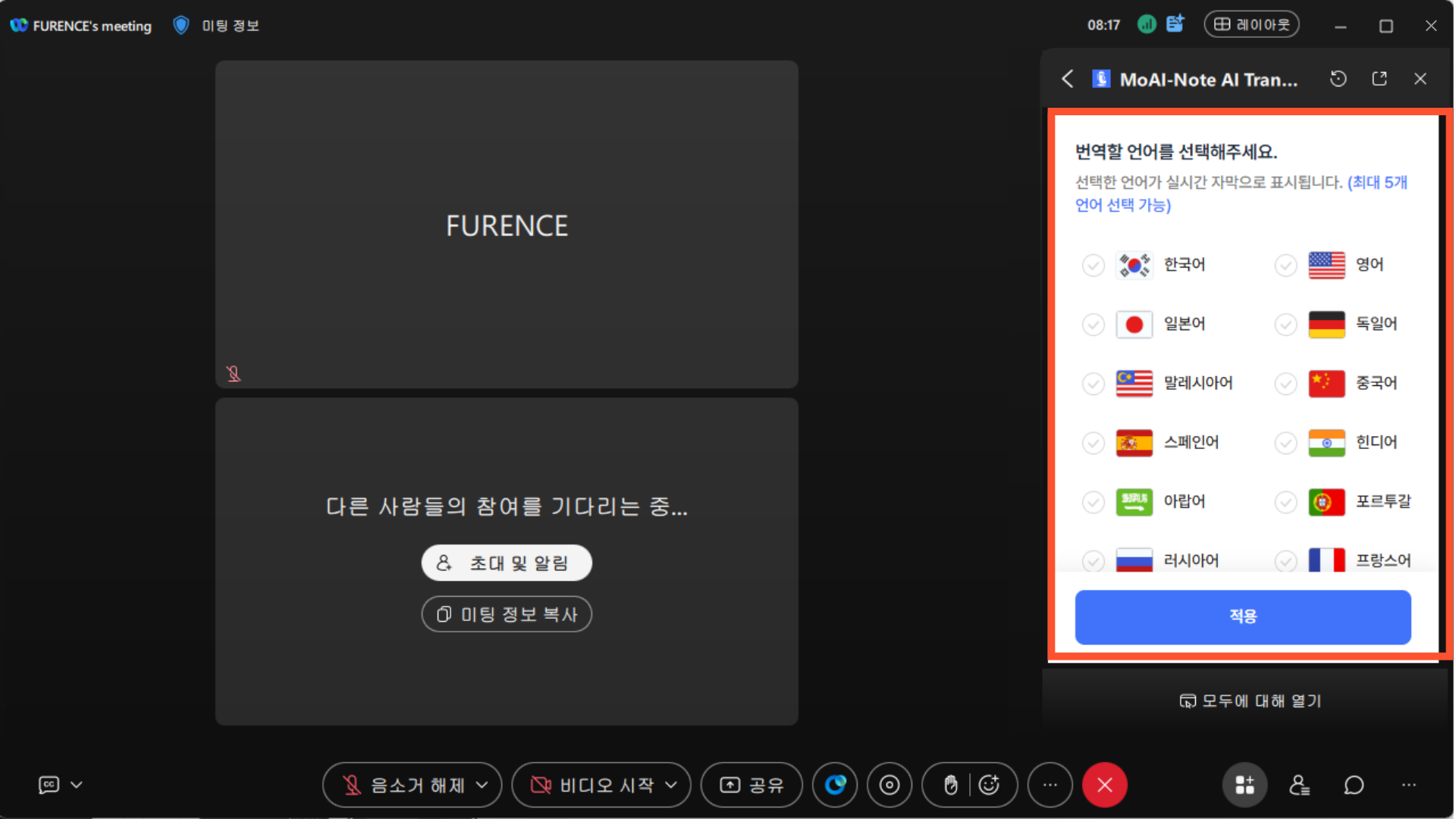
3. Select the languages to translate into. You can select up to 5 languages depending on the languages used by participants. After selecting the languages, click the **\[Apply]** button.
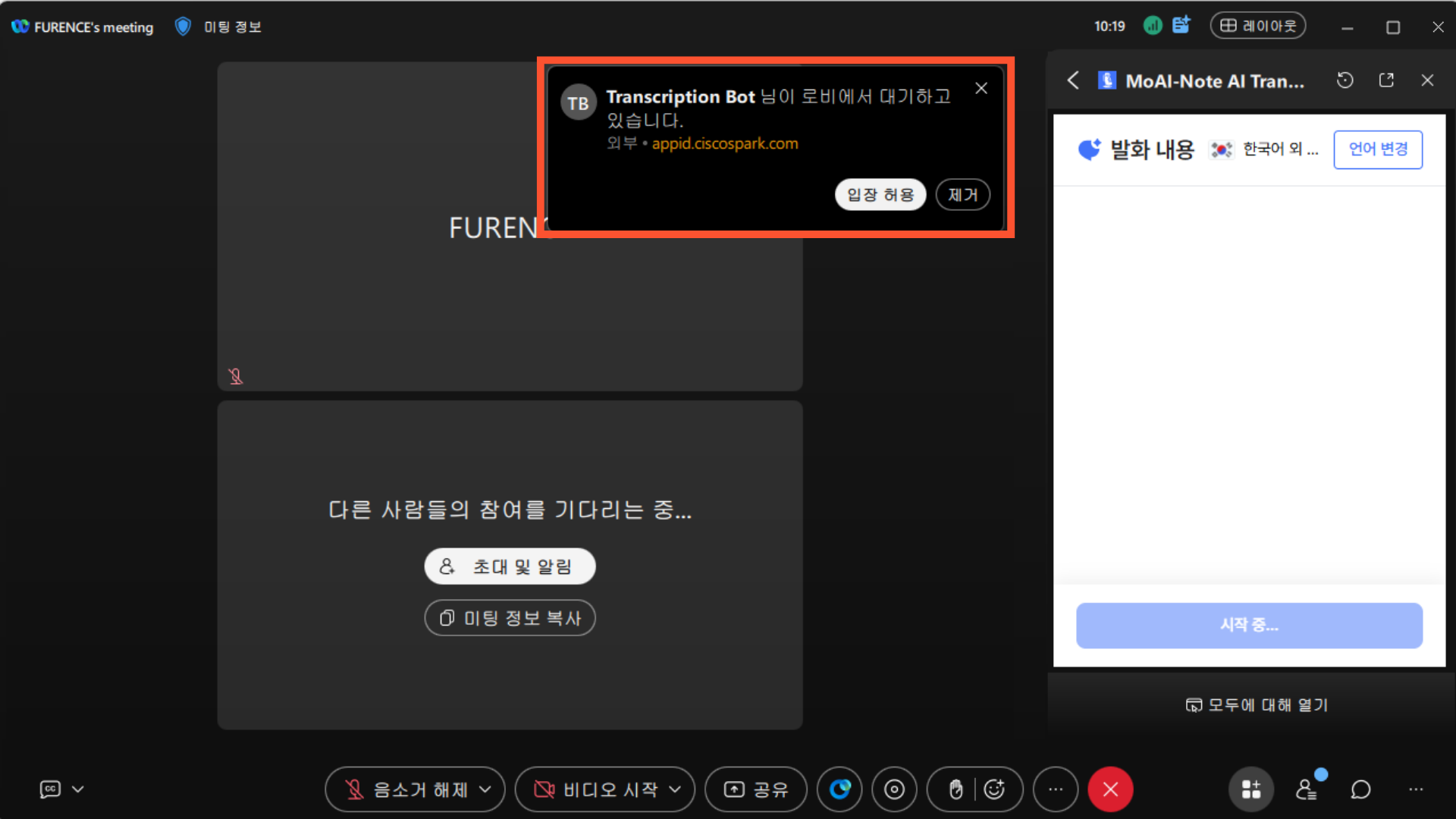
4. When the pop-up **\[Transcription Bot is waiting in the lobby]** appears, click the **\[Admit]** icon.
5. Once the meeting starts, the spoken content and its translations in the selected languages are displayed in real time in the **\[Transcript]** panel on the right.
***
6. Meetings run through the translation app have their minutes generated automatically. Once the meeting ends, open the minutes from **\[Audio List]** in MoAI Note — there is no need to upload the recording separately.