> For the complete documentation index, see [llms.txt](https://furence.gitbook.io/moai_b2b/llms.txt). Markdown versions of documentation pages are available by appending `.md` to page URLs; this page is available as [Markdown](https://furence.gitbook.io/moai_b2b/moai-web/1/webex/real-time-stt-account-integration-initial-setup.md).
# Real-Time STT Account Integration – Initial Setup
A guide to linking your organization account for MoAI-Note's real-time STT feature in Webex. Approve the app in Webex Control Hub to get started.
1\) Go to Webex Control Hub and log in.
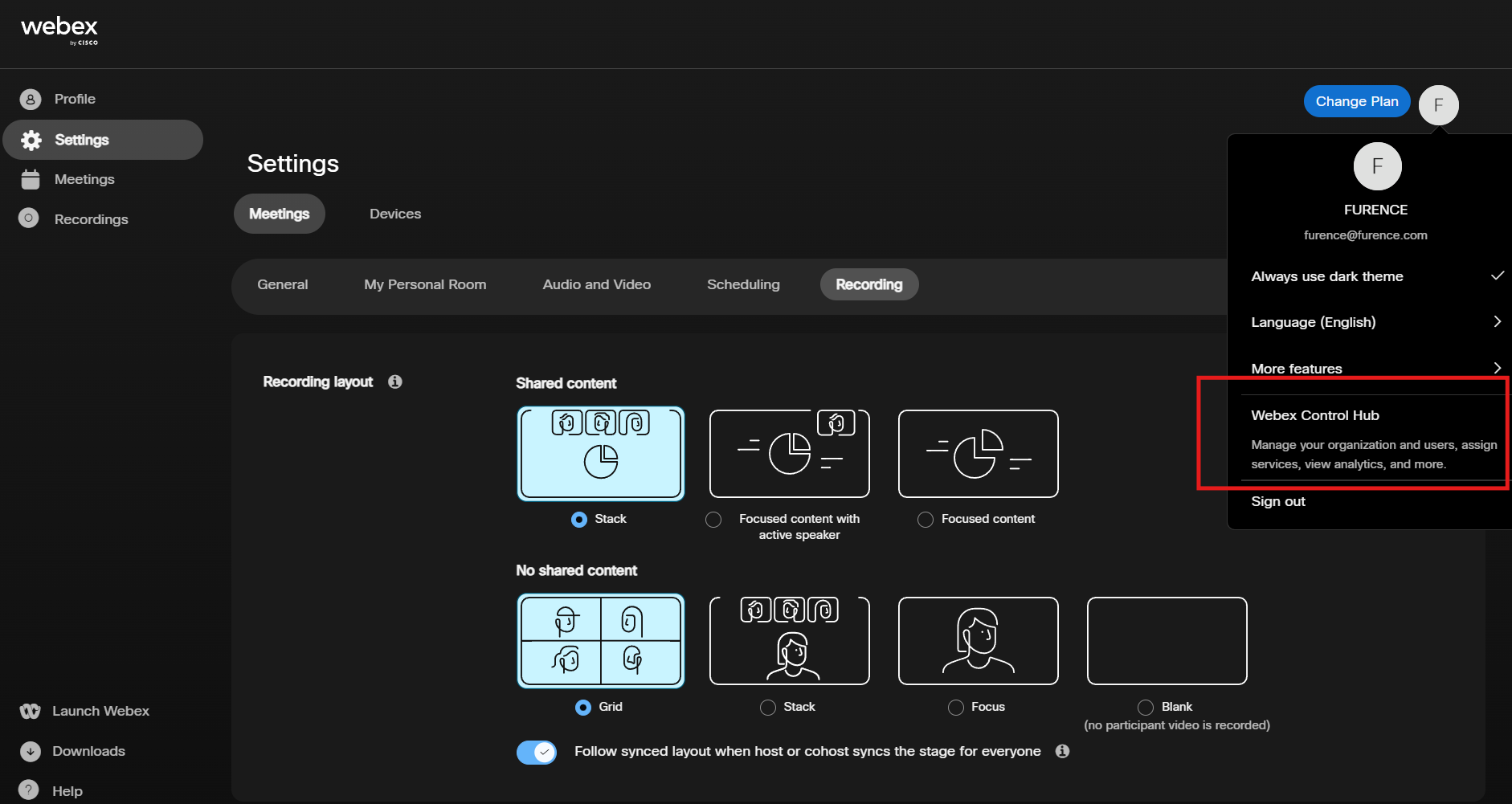
2\) Click the profile icon at the top right.
3\) Click **Webex Control Hub** at the bottom of the profile tab.
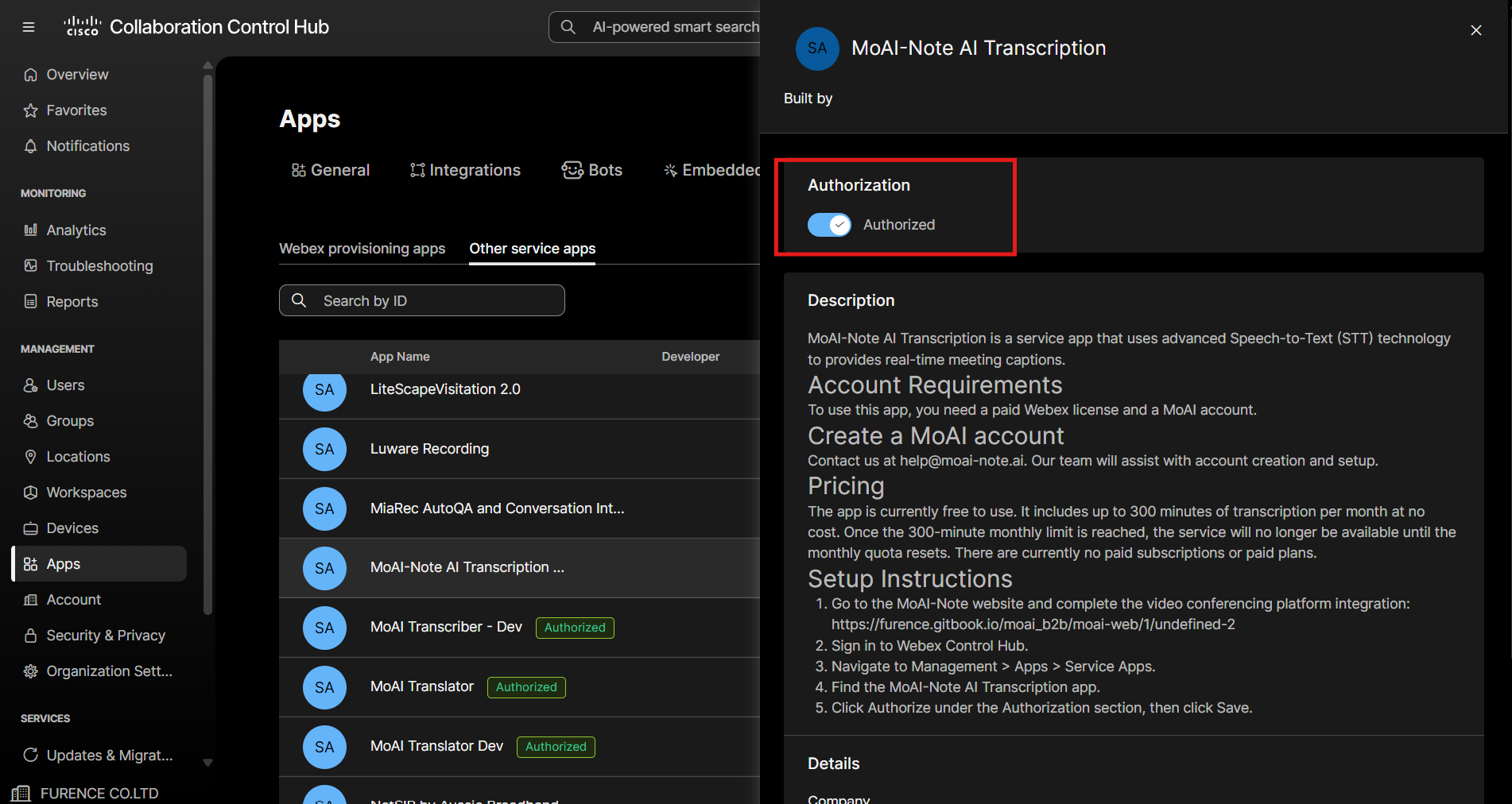
4\) Click **\[Apps] > \[Service app] > \[Other service apps] > \[MoAI-Note AI Transcription]** in that order.
5\) Click **\[MoAI-Note AI Transcription]**, and a panel will appear on the right.
In the right panel, switch the **\[Authorization]** toggle to **On**.

.png)
.png)