> For the complete documentation index, see [llms.txt](https://furence.gitbook.io/moai_b2b/llms.txt). Markdown versions of documentation pages are available by appending `.md` to page URLs; this page is available as [Markdown](https://furence.gitbook.io/moai_b2b/moai-web/1/webex/webex-integration-initial-setup.md).
# Webex Integration – Initial Setup
This guide explains how to set up the initial Webex integration in MoAI Note.
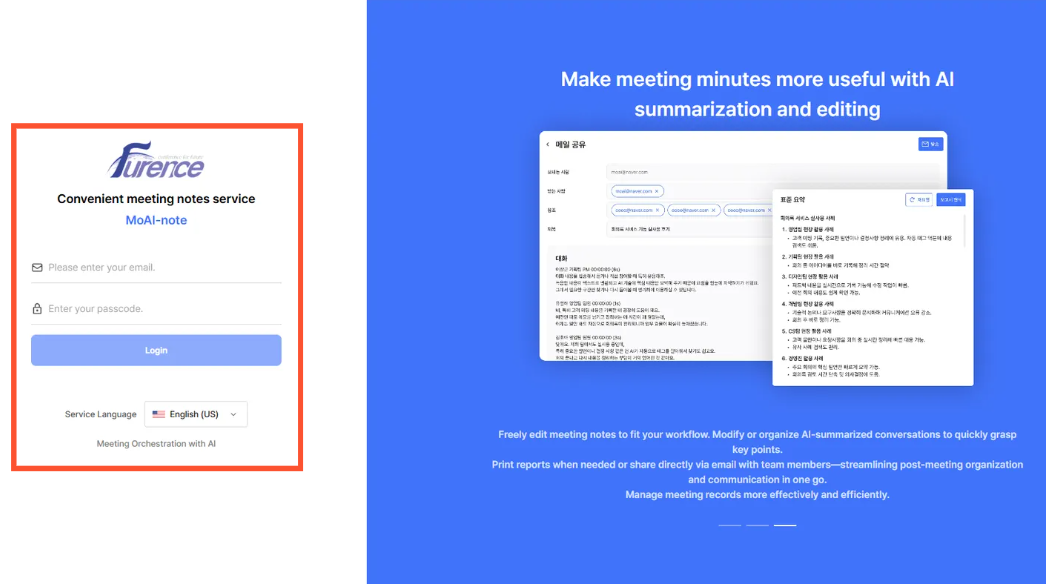
1. Log in to MoAI Note ().
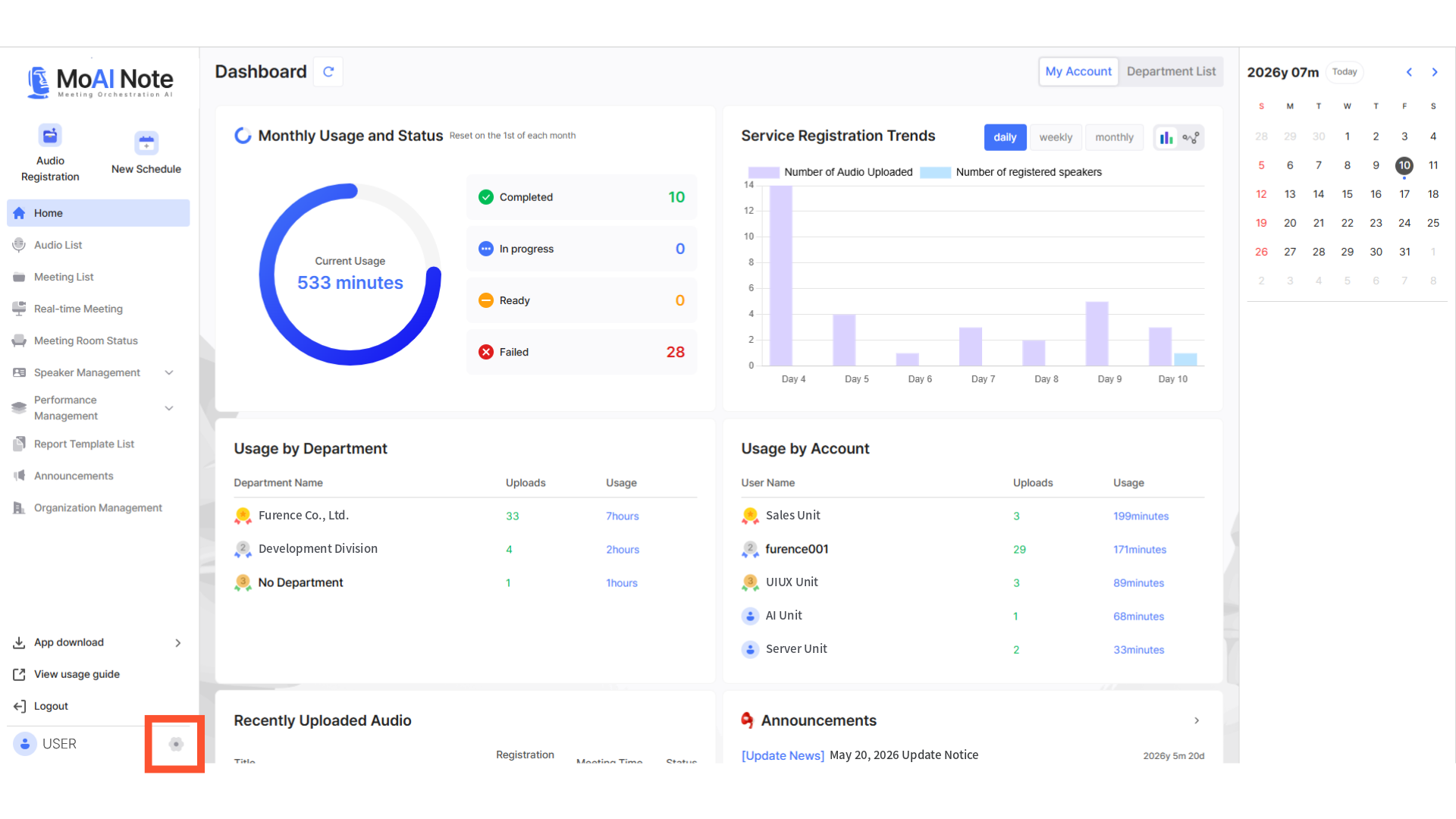
2. On the home screen, click the gear-shaped **\[Service Settings]** icon at the bottom left.
3. In Service Settings, click the **\[Interworking]** tab. The integration settings panel for Zoom and Webex will appear.
4. Click **\[Connect]** on the right side of the Webex section, then sign in with your Webex account.
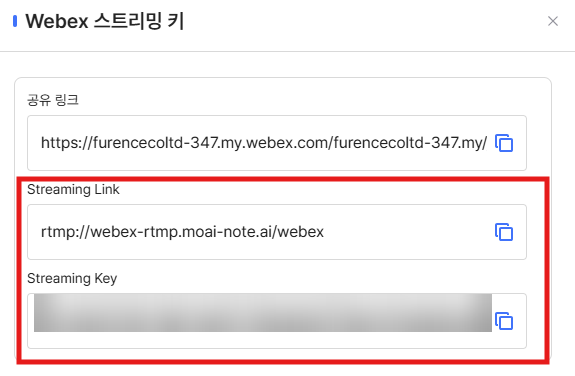
5. Click **\[View KEY]** in the Webex section of the MoAI Note Service Settings screen.\
6. Copy the displayed **Streaming Link** and **Streaming Key**.
.png)
.png)
.png)